Category Archives: Mobile Wiseguy

Welcome to Mobile Wiseguy’s Mobile Wiseguy category! Here, we offer expert wireless solutions for your business, backed by over 35 years of experience in the industry. Our team of experts has over 100 years of combined experience, ensuring that you receive the best guidance and support for all of your AT&T business services, including Network Services, Voice and Collaboration, Cybersecurity, Hybrid Cloud, Mobility, IoT, and FirstNet.

We understand that managing your business’s wireless needs can be a burden, which is why we take care of everything from procuring, implementing, optimizing, and managing your wireless service requirements. Our stand-alone voice or bundled voice/data solution packages are perfect for a variety of real-time wireless applications, such as GPS-mapping, dispatch, time sheets, driving directions, real-time work status, geo-fencing, personnel and asset tracking, payment solutions, work order processing, inventory, and sales-force management with key metric reporting.

As your liaison between the customer and the carrier, we provide non-biased customer solutions and work with you to get the best deals and discounts available. We also offer a free analysis of your existing wireless setup.

Don’t waste any more time and effort managing your business’s wireless needs on your own. Contact us today to schedule a consultation and discover how Mobile Wiseguy can help your business thrive with our expert wireless solutions.

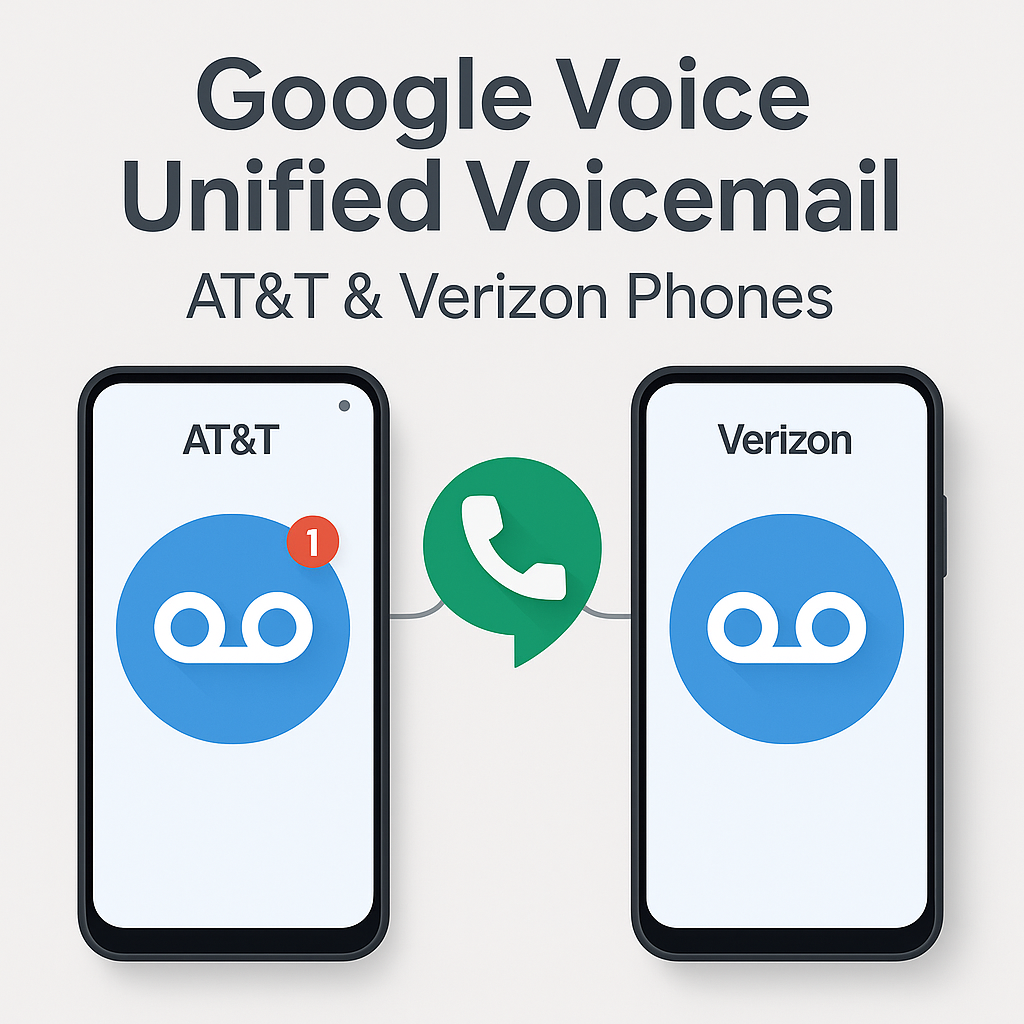
How I Use Google Voice Voicemail for Unified Voicemail on AT&T and Verizon Phones

How I Use Google Voice Voicemail on AT&T and Verizon Phones

Managing multiple phones across different carriers brought some challenges for me—especially when voicemails were scattered between devices. Google Voice offers a great way to unify voicemail, even if your devices are split between AT&T and Verizon.

My Experience

I was having issues where the native voicemail from my AT&T and Verizon phone numbers would sometimes pick up if I did not answer or rejected the call. This fragmented my voicemail and made tracking missed messages difficult. I only wanted Google Voice voicemail to pick up so I could have a centralized inbox.

Additionally, I set Google Voice to prefer Wi-Fi and mobile data for seamless calls and visual voicemail access. However, on my Samsung Galaxy S25 Ultra on AT&T, the ringtone was only using notification alerts and could not be changed, which made it hard to distinguish incoming calls. I also found better cellular reception with the regular AT&T service, which improved call quality.

Setting up call forwarding from my AT&T and Verizon numbers to Google Voice resolved both the voicemail and ringtone issues, allowing me to manage Google Voice across all my devices—computers, tablets, laptops, and multiple phones—with ease and better call handling.

Why I Use Google Voice for Voicemail Unification

If you juggle two phones—one with AT&T and one with Verizon—Google Voice lets you consolidate your voicemails into one inbox. This is especially useful for professionals, consultants, and frequent travelers who manage multiple lines.

How I Set Up Conditional Call Forwarding on AT&T

To make sure all missed calls route to my Google Voice voicemail, I activated conditional call forwarding on my AT&T phone by dialing these codes (substitute GVNUMBER with your full Google Voice number):

  • Unanswered calls: *61*GVNUMBER#
  • Phone unreachable: *62*GVNUMBER#
  • Busy line: *67*GVNUMBER#

Each code needs to be dialed separately with confirmation tones following. This setup ensures only my Google Voice voicemail picks up under these conditions.

How I Set Up Single-Step Forwarding on Verizon

On my Verizon phone, setup was simpler—I dialed *71 plus my Google Voice number, which activates conditional forwarding for unanswered, busy, or unreachable calls.

After dialing, I tested forwarding by calling my Verizon number from another device to ensure voicemail routed correctly. If I ever need to disable forwarding, I can dial *73 or adjust settings on my Verizon account portal.

How I Manage Data Use and Troubleshoot

  • I make sure my Google Voice number isn’t linked in the app to avoid call routing loops or conflicts.
  • I set Google Voice to prefer Wi-Fi and mobile data for calls and visual voicemail access.
  • If calls don’t route correctly, I check my carrier app or contact support to confirm forwarding is active.

Summary Table of How I Use Forwarding

Carrier Forwarding Code(s) What It Does
AT&T *61*GVNUMBER# (Unanswered)
*62*GVNUMBER# (Unreachable)
*67*GVNUMBER# (Busy)
Forwards missed calls to Google Voice voicemail
Verizon *71GVNUMBER (All missed calls) Forwards missed calls to Google Voice voicemail

Using Google Voice with these forwarding setups means all my missed calls from both AT&T and Verizon go directly to my Google Voice voicemail, making call and message management seamless and simple.

How to Turn Off Google Voice Call Forwarding Features

Note: This describes how I turned off forwarding for my Google Voice number. The instructions below should work to turn off call forwarding for any phone number on AT&T or Verizon networks.

  • AT&T: Dial ##21# and press Call. You should hear a confirmation tone indicating all call forwarding is disabled.
  • Verizon: Dial *73 and press Call. Wait for the confirmation tone to know that forwarding is turned off.

These codes deactivate all conditional and unconditional call forwarding, stopping calls from being forwarded to Google Voice or any other number.

AT&T Internet Air Promotion & Fleet Management Promotions

AT&T AIA-B Premium Plans & FleetComplete Promotions — Here’s What You Need to Know

It’s Curtis, the MobileWiseGuy. If you’re managing business wireless accounts, these new AT&T promotions I’m working with could really move the needle for your wireless spend and fleet management in 2025.

What’s New with AT&T AIA-B Premium & Standard Plans?

  • AT&T has rolled out some exclusive discounts and priority features that I’m helping my clients take full advantage of — this isn’t your typical plan update.
  • The Premium and Standard options give you flexibility on coverage, speed, and device support—all tuned to keep your critical business lines running smoothly.
  • These deals can help streamline upgrades and give your telecom team more control and savings.
  • See the full AT&T AIA-B Premium/Standard promo details here. I’m always happy to walk you through how these translate to your account.

FleetComplete & PowerFleet — What You Should Know

  • These solutions integrate directly with AT&T’s wireless service and provide powerful tools for vehicle tracking, compliance, and boosting team productivity.
  • My clients love the dashboards—they’re easy to customize and scale for even the biggest national fleets.
  • Right now, there are promotions bundling device, data, and platform costs that can save you serious money.
  • Learn more about FleetComplete and PowerFleet promotions here. Let me know if you want me to break it down in a call.

Why This Matters for Your Business

  • I’ve seen first-hand how negotiating these promotions across wireless accounts can unlock savings and add value—especially when you’re managing lots of lines or locations.
  • AT&T’s got advanced security and compliance features built in, something businesses can’t afford to ignore.
  • From big deployments to ongoing account management, I’m here to help simplify the process and maximize your wireless investment.

If you want to get ahead with these AT&T promotions or just want to chat about how wireless can better serve your business goals, I’m only a message away. Let’s talk and make wireless work smarter for you.

How to Properly Activate a Phone on AT&T (New Lines, Upgrades & Ports)

Activating a Phone on AT&T: New Lines, Upgrades & Ports

Activating a new or upgraded phone on AT&T is an essential step whether you’re starting a new line, upgrading an existing device, or porting your number from another carrier. Many people think transferring their content or setting up their eSIM automatically activates service, but that’s incorrect—these steps only move your data and number, not your active cellular service.

What Really Activates Your AT&T Phone?

To officially activate any new line, upgraded phone, or ported number, use one of these approved AT&T methods:

These will link your device’s IMEI and SIM/eSIM to your account, activating service on the right line.

Content Transfer vs. Activation

It’s easy to confuse content transfers (moving your photos, contacts, apps) or eSIM transfers with actual activation. While both processes are important when setting up a phone, neither triggers carrier activation—the phone won’t have active cellular service until done via the official AT&T activation page or automated number.

What About Number Porting?

If you’re bringing a number from another carrier (port), do not cancel your old service before the port. AT&T handles the switch for you to avoid service gaps. When the port is ready, activate your new device using the AT&T activation tools listed above. Text messages may take a few days to fully transfer after porting—reset your network settings if needed, or contact AT&T customer support.

Upgrade & eSIM Swaps

For upgraded lines or swapping eSIM profiles, always finish the official AT&T activation (online or by phone) first. After that, you can transfer your content or move your eSIM if eligible, but only an actual activation makes your device ready for use on AT&T’s network.

Quick Step-By-Step

  1. Insert your new SIM (or set up eSIM, if directed).
  2. Visit att.com/activations/activatewireless or call 866-895-1099.
  3. Follow prompts to enter your device details and complete activation for your new line, upgrade, or port.
  4. Once active, transfer your content and eSIM as needed.

If you have trouble, call AT&T customer service for support to avoid confusion and ensure your phone works as intended.