
Category Archives: Solution Provider

Solution Provider: Expert Business Telecommunications & Wireless Support

The Solution Provider category on Mobile Wiseguy is dedicated to helping businesses navigate the complex world of telecommunications with expert guidance and tailored solutions. As an AT&T Solution Provider, Curtis Matthews offers businesses a streamlined approach to managing their wireless services, from new activations and device upgrades to business fiber, cybersecurity, and FirstNet solutions.

This section provides valuable insights on how businesses can optimize their AT&T services, take advantage of exclusive promotions, and receive personalized, one-on-one support instead of dealing with traditional customer service channels. Whether you’re a small business or an enterprise, our expertise ensures you get the right solutions to enhance connectivity, improve efficiency, and reduce costs.

Explore resources, case studies, and expert recommendations to make informed decisions about your business telecommunications needs. Partner with a trusted AT&T Solution Provider and take the hassle out of managing your business wireless services.

For direct assistance, contact Mobile Wiseguy today and experience a smarter way to handle your AT&T business account.

Mobile Wiseguy Works Across Tampa Bay Helping Businesses With Wireless and Tech

 Curtis MatthewsEdit

Mobile Business Wireless Help Across Tampa Bay

Mobile Wiseguy works with businesses across Tampa Bay, including Tampa, Westchase, Oldsmar, Clearwater, St. Petersburg, Brandon, Wesley Chapel, Palm Harbor, and nearby areas.

I work mobile because many business wireless and tech issues are easier to solve when I can understand the account, the phones, the users, and the business needs directly.

Some businesses need help with phone upgrades. Some need new lines added. Others need billing questions answered, plan reviews, business internet options, or help moving from one device to another.

The goal is simple: help Tampa Bay businesses get wireless and technology handled without wasting hours chasing answers.

A Real Local Consultant, Not Just a Website

Mobile Wiseguy is based in the Tampa Bay area and helps business owners, managers, and teams with practical wireless and technology support.

I can help by phone, email, video call, or by meeting at your business when it makes sense. Some issues can be handled remotely. Other times, being there in person makes the process easier for the customer and the employees using the phones.

Mobile Wiseguy is listed on Google Maps so Tampa Bay businesses can verify the business, see reviews, and connect with a real local consultant.

View Mobile Wiseguy on Google Maps

Helping a Tampa Bay Business With a Phone Upgrade

On this visit, I helped a local business customer move from an Android Pixel phone to an Apple iPhone. Switching from Android to iPhone can feel confusing for customers who are used to one type of phone, so I wanted to make the process easier.

Before the visit, I updated my AT&T Wireless Consultant site with a tutorial about moving content from Android to iPhone. That gave the customer a helpful reference and also gives future customers a simple guide to follow.

You can view that guide here: Smartphone Content Transfer Guide.

When I arrived at the customer’s office, the new iPhone had not been activated yet. That made it easier to start the transfer correctly. I downloaded the Move to iOS app on the Android phone and started moving the customer’s information to the new iPhone.

After the transfer was completed, I activated the phone and completed a test call to make sure the service was working. We also checked contacts, messages, and other important information to confirm the data moved over correctly.

Device Setup, Apple ID Help, and Plan Review

The customer’s apps transferred over, but they still needed to be downloaded on the iPhone. That required signing into an Apple ID. His Gmail address was already connected to an Apple account, so we were able to reset the password with a verification code and continue the setup.

That is the kind of small issue that can slow down a busy business owner or employee. When I am there helping directly, I can keep the process moving and reduce frustration.

After the phone setup, I reviewed the wireless account and found a way to lower the monthly cost. The plan update saved the customer $15 per smartphone line.
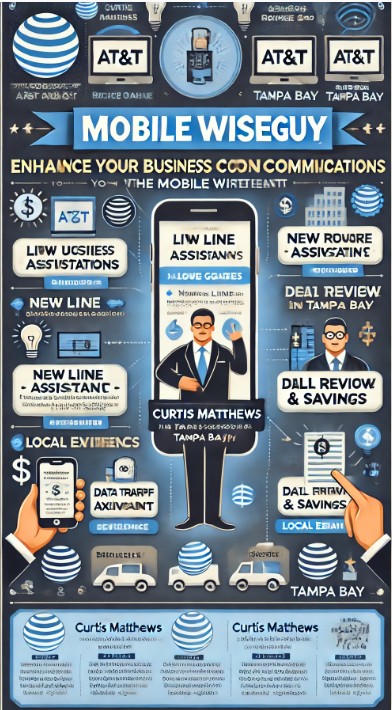
Mobile Wiseguy office visit infographic for business wireless help in Tampa Bay
Mobile Wiseguy helps Tampa Bay businesses with phone upgrades, new lines, device setup, account reviews, and wireless support.

Business Wireless and Tech Help Across Tampa Bay

This type of visit is why I like working directly with local businesses. A phone upgrade is not always just a phone upgrade. Sometimes it involves data transfer, activation, account access, plan review, app setup, password recovery, and making sure the user can get back to work.

That is where experience matters. I help connect the dots so the business does not have to figure everything out alone.

Phone Upgrades

Help choosing, ordering, activating, and setting up new business phones.

New Lines

Support for adding business lines, users, phones, tablets, and connected devices.

Plan Reviews

Review business wireless accounts to look for better plan options and possible savings.

Device Setup

Help with activation, content transfer, Apple ID issues, basic setup, and user readiness.

Business Internet

Help reviewing business internet options for offices, remote locations, and mobile teams.

Local Support

Tampa Bay business help by phone, email, video call, or in person when needed.

Why Mobile Service Matters

Many business owners and managers do not have time to sit on hold, visit stores, or chase down answers. They need someone who understands business wireless and can help guide the process.

Working mobile lets me help customers in the real environment where the phones and services are being used. That can make the difference between a frustrating upgrade and a smooth one.

Hands-on service builds trust. It also helps me better understand what each business actually needs.

Need Business Wireless Help in Tampa Bay?

If your business needs help with wireless service, phone upgrades, new lines, billing questions, plan reviews, device setup, or business internet, contact Mobile Wiseguy.

I work directly with Tampa Bay businesses and help guide the process from account review to order to setup.

Contact Curtis Matthews, Mobile Wiseguy, for business wireless and technology help across Tampa Bay.
Contact Mobile Wiseguy

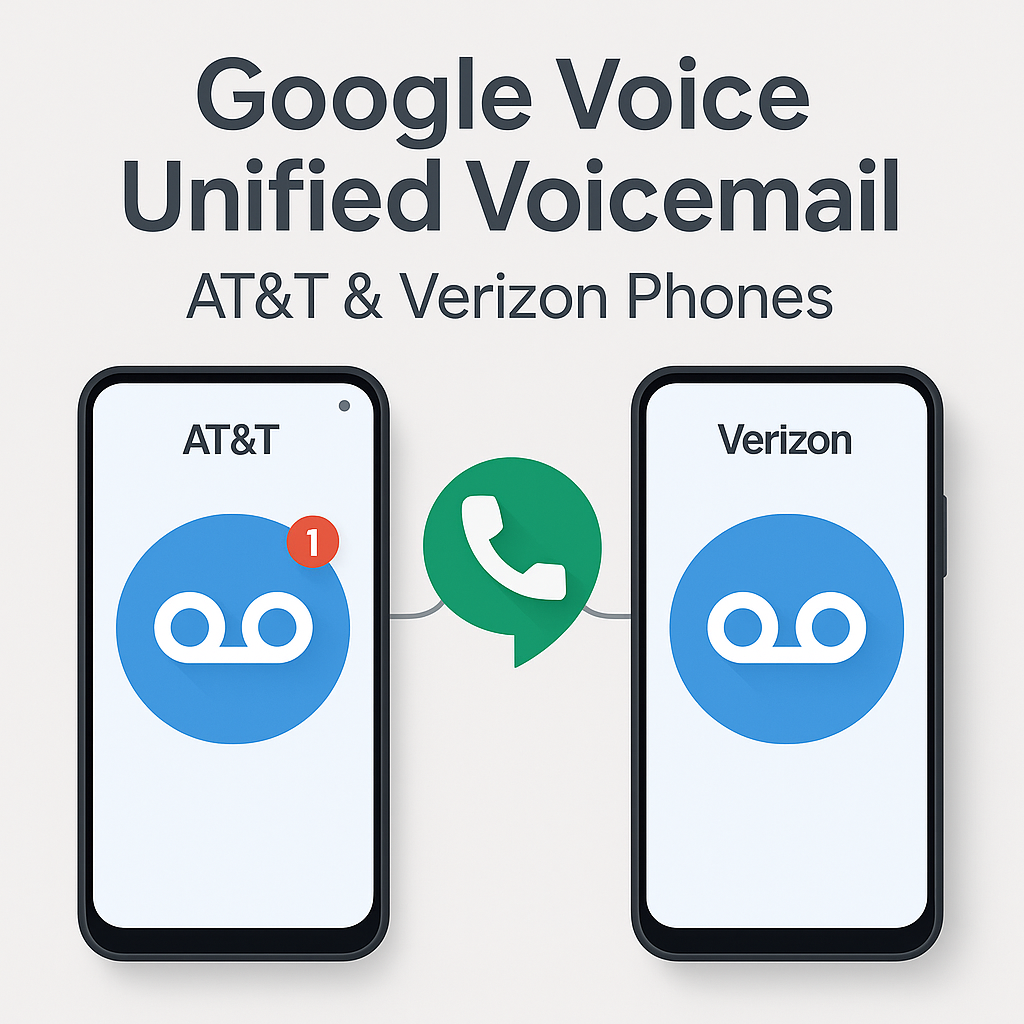
How I Use Google Voice Voicemail for Unified Voicemail on AT&T and Verizon Phones

How I Use Google Voice Voicemail on AT&T and Verizon Phones

Managing multiple phones across different carriers brought some challenges for me—especially when voicemails were scattered between devices. Google Voice offers a great way to unify voicemail, even if your devices are split between AT&T and Verizon.

My Experience

I was having issues where the native voicemail from my AT&T and Verizon phone numbers would sometimes pick up if I did not answer or rejected the call. This fragmented my voicemail and made tracking missed messages difficult. I only wanted Google Voice voicemail to pick up so I could have a centralized inbox.

Additionally, I set Google Voice to prefer Wi-Fi and mobile data for seamless calls and visual voicemail access. However, on my Samsung Galaxy S25 Ultra on AT&T, the ringtone was only using notification alerts and could not be changed, which made it hard to distinguish incoming calls. I also found better cellular reception with the regular AT&T service, which improved call quality.

Setting up call forwarding from my AT&T and Verizon numbers to Google Voice resolved both the voicemail and ringtone issues, allowing me to manage Google Voice across all my devices—computers, tablets, laptops, and multiple phones—with ease and better call handling.

Why I Use Google Voice for Voicemail Unification

If you juggle two phones—one with AT&T and one with Verizon—Google Voice lets you consolidate your voicemails into one inbox. This is especially useful for professionals, consultants, and frequent travelers who manage multiple lines.

How I Set Up Conditional Call Forwarding on AT&T

To make sure all missed calls route to my Google Voice voicemail, I activated conditional call forwarding on my AT&T phone by dialing these codes (substitute GVNUMBER with your full Google Voice number):

  • Unanswered calls: *61*GVNUMBER#
  • Phone unreachable: *62*GVNUMBER#
  • Busy line: *67*GVNUMBER#

Each code needs to be dialed separately with confirmation tones following. This setup ensures only my Google Voice voicemail picks up under these conditions.

How I Set Up Single-Step Forwarding on Verizon

On my Verizon phone, setup was simpler—I dialed *71 plus my Google Voice number, which activates conditional forwarding for unanswered, busy, or unreachable calls.

After dialing, I tested forwarding by calling my Verizon number from another device to ensure voicemail routed correctly. If I ever need to disable forwarding, I can dial *73 or adjust settings on my Verizon account portal.

How I Manage Data Use and Troubleshoot

  • I make sure my Google Voice number isn’t linked in the app to avoid call routing loops or conflicts.
  • I set Google Voice to prefer Wi-Fi and mobile data for calls and visual voicemail access.
  • If calls don’t route correctly, I check my carrier app or contact support to confirm forwarding is active.

Summary Table of How I Use Forwarding

Carrier Forwarding Code(s) What It Does
AT&T *61*GVNUMBER# (Unanswered)
*62*GVNUMBER# (Unreachable)
*67*GVNUMBER# (Busy)
Forwards missed calls to Google Voice voicemail
Verizon *71GVNUMBER (All missed calls) Forwards missed calls to Google Voice voicemail

Using Google Voice with these forwarding setups means all my missed calls from both AT&T and Verizon go directly to my Google Voice voicemail, making call and message management seamless and simple.

How to Turn Off Google Voice Call Forwarding Features

Note: This describes how I turned off forwarding for my Google Voice number. The instructions below should work to turn off call forwarding for any phone number on AT&T or Verizon networks.

  • AT&T: Dial ##21# and press Call. You should hear a confirmation tone indicating all call forwarding is disabled.
  • Verizon: Dial *73 and press Call. Wait for the confirmation tone to know that forwarding is turned off.

These codes deactivate all conditional and unconditional call forwarding, stopping calls from being forwarded to Google Voice or any other number.